
Can't find the right answer?
Go to our contact page and get in touch with us. Our support team will be happy to help you.

Simplify task management with Eggmed
The Tasks Screen in Eggmed software provides an organized view of tasks categorized into three sections: To Do, In Progress, and Done. Each category is displayed as a column for clear task management.
The To Do column lists all pending tasks, including details such as priority levels (e.g., High, Medium, Low) and descriptions. You can assign or update tasks and identify additional elements like reminders or attachments using icons for quick reference.
The In Progress column showcases tasks that are currently being worked on. It provides the same task details as the To Do column, making it easy to track progress and focus on active responsibilities.
The Done column serves as a record of completed tasks. Priority levels remain visible, helping you review and reflect on significant achievements.
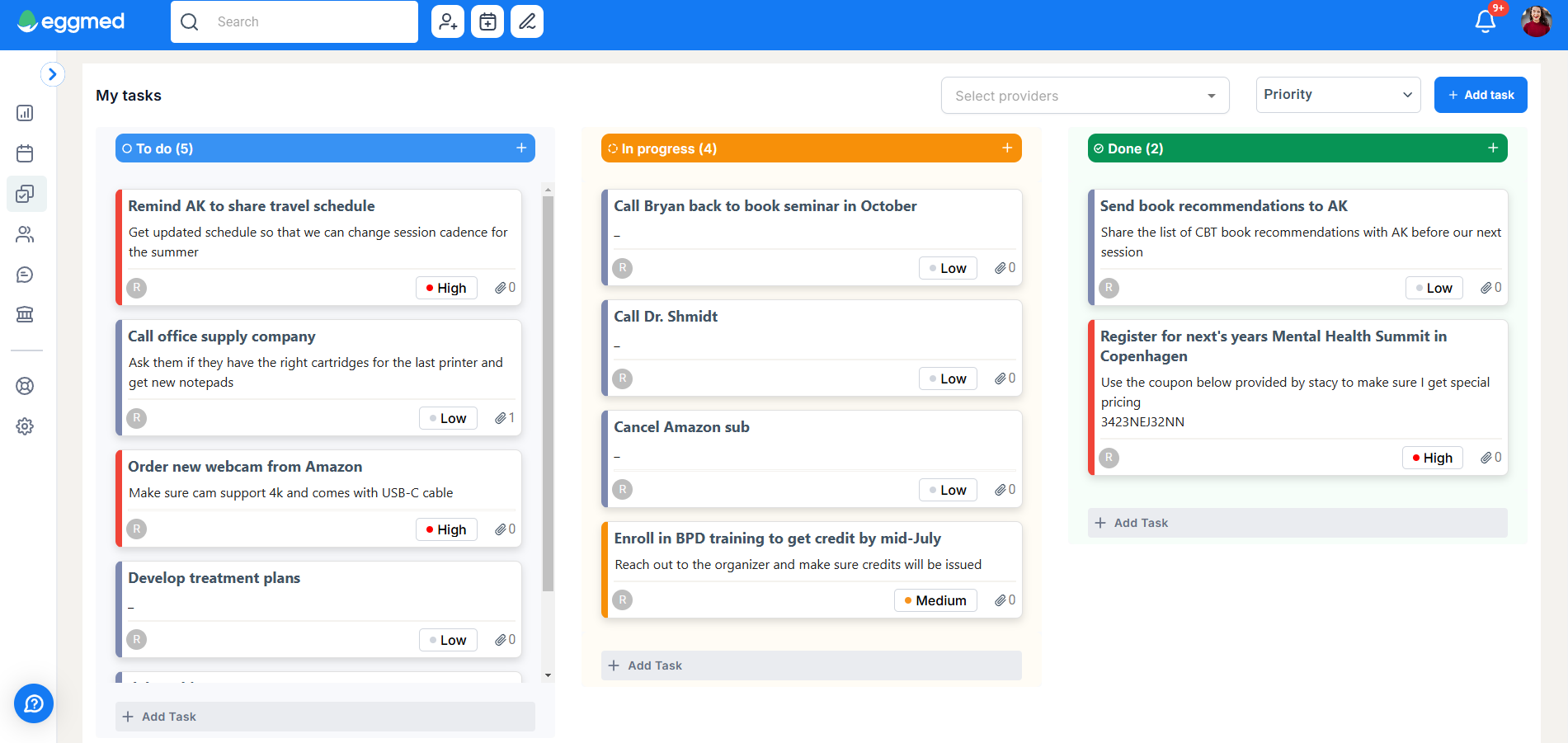
At the bottom of each column, the + Add Task button allows you to quickly create new tasks. This feature ensures you can easily input and organize tasks as needed without navigating away from the screen. More about task creation here.
Eggmed enables you to assign tasks to team members, fostering collaboration and accountability. Tasks can be delegated based on the priority and scope of work, ensuring the workload is shared effectively across the team.
You can attach specific clients to tasks for better tracking and organization. These tasks will automatically appear under the Tasks tab on the client’s profile. However, clients will not be notified, maintaining privacy while ensuring tasks are accessible to you and other team members.
The tasks screen allows you to sort and filter tasks using the dropdown menu at the top of the page. For instance, you can prioritize tasks by urgency or assigned providers, ensuring that high-priority items receive attention first. Priority tags, icons for reminders, and notes make tasks easy to identify and manage. These visual cues help streamline navigation and task handling, keeping your workspace organized and efficient.
This interface is tailored to simplify task management, allowing teams to coordinate, prioritize, and track client-related activities seamlessly within Eggmed.
Go to our contact page and get in touch with us. Our support team will be happy to help you.

The all-in-one platform for behavioral health. More care. Less admin.